iPhone System Data: What's Normal & How to Clear It (2026)

If you've ever checked your iPhone storage and found a mysterious category called "System Data" eating up 5, 10, or even 20 GB of space, you're not alone. System Data (previously called "Other" in older iOS versions) is one of the most confusing and frustrating aspects of iPhone storage management. In this guide, we'll explain exactly what it is, why it grows, and how to reduce it.
What Is System Data on iPhone?
System Data is a catch-all category that includes everything iOS needs to function but doesn't fit neatly into other categories like Apps, Photos, or Media. According to Apple, it includes:
- System caches - Temporary files created by iOS, Safari, Mail, and other apps
- Logs and diagnostics - Crash reports, usage analytics, and system logs
- iOS update files - Downloaded updates waiting to be installed
- Siri voices and dictation data - Offline voice recognition models
- Fonts and keyboard data - Additional language packs and custom keyboards
- Keychain and security data - Encrypted credentials and certificates
Why Does System Data Keep Growing?
System Data grows for several reasons, and understanding them helps you manage it better:
Recommended reading: How to Delete Photos from iCloud (Without Losing Them on iPhone)
1. Safari and App Caches
Every website you visit in Safari and every app you use stores temporary data to load faster next time. Over months of use, these caches can accumulate several gigabytes. Streaming apps like Spotify, Netflix, and YouTube are particularly cache-heavy because they buffer media content locally.
2. iOS Update Residue
When iOS downloads an update, it stores the update file (often 1-5 GB) in System Data. Even after installing the update, some temporary files may linger. If an update fails or is interrupted, the downloaded file can remain indefinitely until you manually trigger a cleanup.
3. Message Attachments and Previews
iMessage, WhatsApp, and other messaging apps generate link previews, cache images, and store temporary media. If you're in active group chats that share lots of photos and videos, this data grows quickly. While the messages themselves appear under the Messages category, many associated caches fall under System Data.
Recommended reading: How to Free Up iCloud Storage: 7 Proven Ways (2026 Guide)
4. Mail Caches and Attachments
If you have multiple email accounts configured, Mail downloads and caches message content, attachments, and previews. Large inboxes with thousands of emails can contribute several GB to System Data.
5. Streaming Buffers
Music and video streaming apps pre-download content for smooth playback. Apple Music, Spotify, YouTube, and Netflix all maintain local buffers that count toward System Data. The more you stream, the larger these buffers grow.

Ready to clean your gallery?
Download Tidy and start swiping. AI-powered duplicate detection, smart filters, and a photo editor built in.
How to Check Your System Data
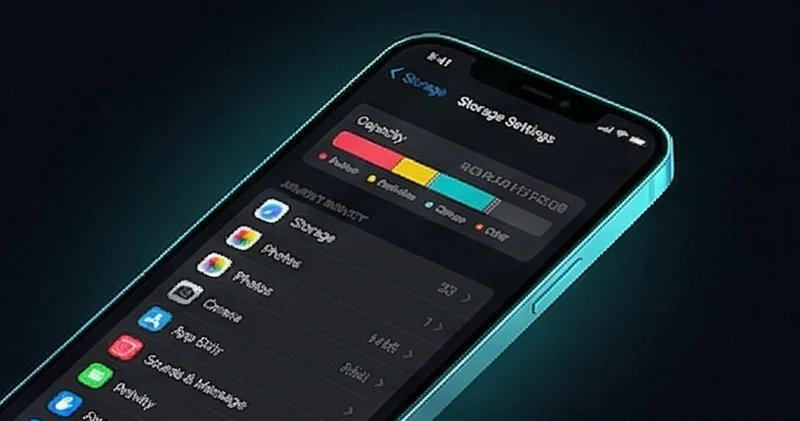
Go to Settings > General > iPhone Storage. Wait for the colored bar chart to fully load (this can take 30-60 seconds). Scroll to the bottom to see "System Data" with its current size. On iOS 18, you can tap it for a brief explanation.
Recommended reading: iPhone Storage Full? Here's Exactly How Much Space Your Photos Take
Typical System Data sizes:
- Normal: 2-8 GB
- Elevated: 8-15 GB (needs attention)
- Excessive: 15+ GB (something is likely wrong)
How to Reduce System Data
Step 1: Clear Safari Data (Saves 0.5-2 GB)
Go to Settings > Safari > Clear History and Website Data. This removes all cached web pages, cookies, and browsing history. If you use Safari heavily, this alone can free up significant space. Note: you'll need to log back into websites.
Step 2: Offload and Reinstall Cache-Heavy Apps (Saves 1-5 GB)
Some apps accumulate massive caches that don't clear themselves. The worst offenders are typically social media apps (Instagram, TikTok, Facebook), streaming apps (Spotify, Netflix), and messaging apps (WhatsApp, Telegram). To clear an app's cache completely:
- Go to Settings > General > iPhone Storage
- Find the app and check its "Documents & Data" size
- If it's large (500 MB+), tap "Offload App" then reinstall from the App Store
This removes the app and its cached data while preserving your login and settings.
Step 3: Delete Old iOS Update Files (Saves 1-5 GB)
If you have a pending iOS update downloaded but not installed, it's sitting in System Data. Go to Settings > General > iPhone Storage and look for "iOS [version]" in the app list. If you see it, delete it. You can re-download the update when you're ready to install.
Step 4: Restart Your iPhone (Saves 0.5-2 GB)
A simple restart clears temporary caches, purges memory, and removes some diagnostic logs. Press and hold the side button + volume down, slide to power off, wait 30 seconds, then turn back on. Check System Data before and after to see the difference.
Step 5: Review Message Attachments (Saves 1-3 GB)
Go to Settings > General > iPhone Storage > Messages. iOS shows your largest message conversations and attachments. You can review and delete old photos, videos, GIFs, and files sent through iMessage. For WhatsApp, open Settings > Storage and Data > Manage Storage to review large media.
Step 6: Reset All Settings (Nuclear Option)
If System Data is abnormally large (20+ GB) and nothing else works, go to Settings > General > Transfer or Reset iPhone > Reset All Settings. This doesn't delete your data, apps, or photos, but it resets Wi-Fi passwords, wallpaper, display settings, and other preferences. It often triggers iOS to clean up bloated system caches.
Clean Up Your Photos While You're At It

While managing System Data, don't forget that photos and videos are usually the biggest storage consumer on any iPhone. Tidy makes it easy to find and delete duplicate photos, blurry shots, old screenshots, and unnecessary videos. With AI-powered filters and a swipe-based interface, you can free up gigabytes of storage in minutes. The app works entirely on-device, so your photos never leave your phone.
Start with the Largest First filter to target the biggest space wasters, then use Similar Photos to eliminate duplicates. Most users free up 2-5 GB in their first cleaning session.
Preventing System Data Buildup
- Restart weekly - A regular restart clears temporary caches before they accumulate
- Keep iOS updated - Each update includes cache management improvements
- Clear Safari monthly - Prevent web cache from growing unchecked
- Review app storage quarterly - Check which apps have oversized caches
- Use Tidy weekly - Regular photo cleanup prevents storage from filling up, which causes iOS to manage caches less efficiently
System Data vs. Other Storage Categories
Here's how System Data differs from other iPhone storage categories:
- Apps - The actual app binaries and their associated data you've created
- Photos - Your photo library including iCloud Photo Library thumbnails
- Media - Downloaded music, podcasts, TV shows, and audiobooks
- Mail - Email messages and attachments across all accounts
- Messages - iMessage conversations and their attachments
- iOS - The operating system itself (typically 6-10 GB, can't be reduced)
- System Data - Everything else: caches, logs, temp files, Siri data
The key difference: unlike other categories, System Data doesn't have a dedicated management interface. You can't browse it, select items, or delete specific files. That's why it requires the indirect cleanup methods described above.
Frequently Asked Questions
What is System Data on iPhone?
System Data (formerly called 'Other') is a catch-all storage category that includes iOS caches, logs, diagnostics, Siri voices, update files, and temporary data from apps. It typically uses 2-8 GB but can grow to 15+ GB if not managed. You can check it in Settings > General > iPhone Storage.
Why is my iPhone System Data so large?
System Data grows from accumulated app caches (especially Safari, social media, and streaming apps), downloaded iOS updates, message attachment previews, Mail caches, and streaming buffers. Heavy use of Safari, messaging apps, and streaming services accelerates this growth.
How to clear System Data on iPhone?
Clear Safari data (Settings > Safari > Clear History), offload and reinstall cache-heavy apps, delete pending iOS updates, restart your iPhone, and review message attachments. For extreme cases (20+ GB), reset all settings without deleting data.
Does restarting iPhone clear System Data?
A restart typically clears 0.5-2 GB of System Data by purging temporary caches and diagnostic logs. It's a quick first step, but for larger reductions you'll need to clear Safari data and offload apps with large caches.
Is it safe to clear System Data?
Yes, clearing System Data through the recommended methods (clearing Safari cache, offloading apps, restarting) is completely safe. You won't lose any personal data, photos, or app settings. The caches will rebuild naturally as you use your apps.