How to Free Up Storage on Android in 2026 (Samsung & Pixel)
Why your Android storage fills up so fast
You go to take a photo and there it is: "Storage space running out." The frustrating part is that you did not install anything new. The truth is that on most Android phones, photos and videos are the single biggest space hog, followed by app caches and downloads you forgot about.
A typical phone gathers 1 to 3 GB of screenshots a year, plus duplicate bursts, blurry shots, and WhatsApp media you never asked to save. The good news: you can usually reclaim 5 to 20 GB in a few minutes without deleting a single photo that matters. Here is exactly where to look, on Samsung, Pixel, Xiaomi, and any other Android phone.
Step 1: See what is actually eating your storage
Before deleting anything, find out where the space went. Android has this built in.
- Open Settings then Battery and device care (Samsung) or Storage (Pixel and stock Android).
- Tap Storage. You will see a breakdown: Images, Videos, Apps, Audio, Documents, and System.
On almost every phone, Images and Videos are at the top. That tells you the fastest win is in your gallery, not in your apps. So that is where we start.
Step 2: Clear the photo clutter (the biggest win)
Most of your gallery space is not your good memories. It is screenshots, duplicates, blurry shots, and videos. Tackle them in order of size.
Delete old screenshots in one sweep
Screenshots are the easiest gigabytes you will ever recover, because you almost never need to keep them. Open your Gallery or Google Photos, find the Screenshots album, select all, and delete. For the full method, including how to set up automatic cleanup so they never pile up again, see our guide on how to delete all screenshots on Android.
Remove duplicate and burst photos
Burst mode and the habit of taking three versions of every shot mean your gallery is full of near-identical photos. Deleting the extras can free a surprising amount of space. Our guide to deleting duplicate photos walks through doing it by hand and with AI.
Delete large videos first
A single 4K minute can weigh 350 MB, so a handful of old videos often beats deleting hundreds of photos. In Google Photos you can sort by size: go to Photos, tap Search, then Videos, and clear the long ones you no longer need.
Step 3: Empty the Trash (this is the step everyone forgets)
Here is the trap that catches almost everyone. On Samsung, Google Photos, and most Android galleries, deleted photos are not gone. They sit in a Trash or Recycle Bin for 30 days, and they still take up space the whole time.
So after you delete, empty the bin:
- Samsung Gallery: menu then Trash then Empty.
- Google Photos: Library then Trash then Empty trash.
- Files by Google: Trash then select all then Delete.
If you deleted a lot and the storage number did not move, this is almost always why. Our deep dive on permanently deleting photos on Samsung explains the 30-day rule in full.
Step 4: Clear app caches and downloads
After photos, the next layer is hidden junk.
- App cache: Settings then Apps, pick the heavy ones (browsers, social, maps), then Storage then Clear cache. This is safe and does not delete your accounts or data.
- Downloads folder: open Files by Google or My Files, go to Downloads, and clear old PDFs, APKs, and images you already used.
- WhatsApp media: WhatsApp alone can hold several gigabytes of received images and videos. See how to stop WhatsApp auto-saving photos to cut it off at the source.
Step 5: Let AI do the sorting for you
Doing all of this by hand works, but it is slow and you have to repeat it every few weeks. This is exactly the boring, repetitive job that on-device AI is good at.

Free up gigabytes on your Android in minutes
Tidy's on-device AI finds the duplicates, blurry shots, screenshots, and oversized videos clogging your storage, so you clear them in one swipe instead of digging through folders.
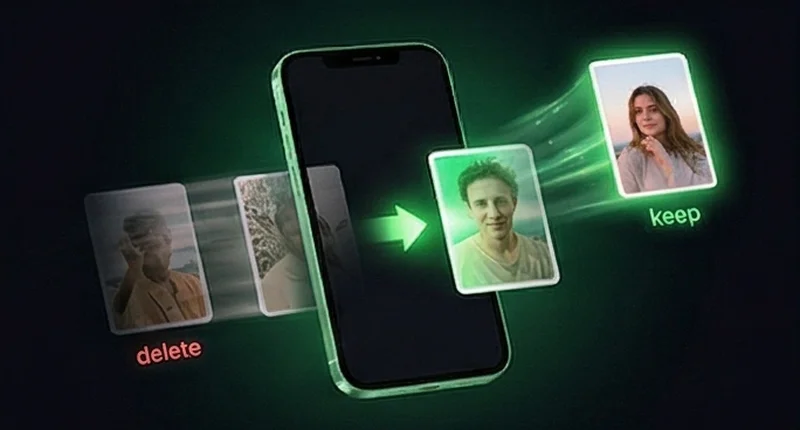
Tidy scans your gallery on your phone and groups the clutter for you: duplicates, blurry shots, screenshots, and large videos, all in one place. You swipe right to keep and left to delete, then confirm. Nothing is uploaded to the cloud, so your photos stay private on your device. It works on both Android and iPhone, so the same cleanup habit follows you across phones.
Step 6: Move photos off the phone, the safe way
If your library is genuinely large and you want to keep everything, the answer is not to delete more, it is to move it off the phone.
- SD card (Samsung, Xiaomi, and others): if your phone has a card slot, you can move photos and videos to the card. Open My Files or Files, select the media, and choose Move to the SD card. A cheap card adds dozens of gigabytes.
- Cloud backup: Google Photos backs up your library so you can safely remove the local copies. The key is to remove the local copy only after the backup finishes, and to be careful not to delete from both places at once. Our guide on deleting from Google Photos while keeping photos on your phone walks through it without risk.
- Computer transfer: plug into a PC or Mac and copy the DCIM folder across for a permanent offline archive.
The point is the same either way: get the big, rarely viewed media off your daily phone so the storage warnings stop for good.
How much space can you expect to recover?
It depends on how long it has been since your last cleanup, but here is a realistic range for a phone that has not been cleaned in a year.
Add it up and 5 to 20 GB is a normal result, often without touching a single photo you care about.
Frequently asked questions
Why is my Android storage full when I deleted photos?
Almost always because the photos are still in the Trash or Recycle Bin. Samsung Gallery and Google Photos keep deleted items for 30 days, and they take up space that whole time. Empty the bin to actually free the storage.
Does clearing app cache delete my data?
No. Clearing cache only removes temporary files an app can rebuild, like thumbnails and saved web pages. Your accounts, messages, and settings stay. It is one of the safest ways to recover space.
What takes up the most space on Android?
For most people it is photos and videos, especially 4K videos and bursts of duplicate shots, followed by app caches and the Downloads folder. Check Settings then Storage to see your own breakdown.
How do I free up space without deleting photos?
Start with screenshots and duplicates, which you rarely need, then clear app caches, downloads, and the WhatsApp media folder. Those four sources usually recover several gigabytes before you ever touch a real memory.
Will moving photos to Google Photos free up phone storage?
Only if you also remove the local copies after they finish backing up. If you delete from the cloud and the device separately, be careful: see our guide on deleting from Google Photos while keeping photos on your phone so you do not lose anything by accident.